Showing posts with label WinForms. Show all posts

Sunday, April 22, 2012

Code Snippets


Introduction:

Snippet is a programming term for a small region of re-usable source code, machine code or text. Code Snippets provide a way for you to insert ready-made snippets of code into your projects.

Advantages:

  • Write once use anywhere: Reduce the repeatable writing of code effort.
  • Define/Maintain a Coding Standard to be used for any Project/Organization.
  • Easy to use as well as create and also easily maintainable.
  • Share with other developers.
  • Increase productivity by making coding faster.

Creating a Snippet File:

To create a snippet file, you must create an XML file, and then write the XML code that makes up your code snippet.
Following are the steps to create a snippet file:

Step1
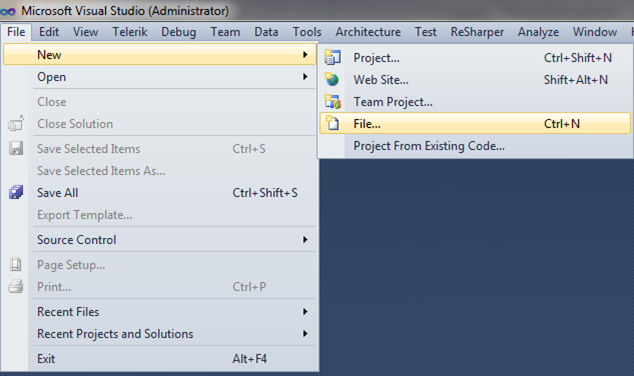


Step 2


Step 3


Step 4


Step 5


Step 6


Manage Code Snippets:

The Code Snippets Manager allows you to set the directories and individual snippets that you want available to insert into your code.

To access the Code Snippets Manager :

      On the Tools menu, click Code Snippets Manager.

To add a directory to the Code Snippet Manager :

In the Language: drop-down list, select the language that you want to add a directory to.
Click Add. This opens the Code Snippets Directory window.
Select the directory that you want to add to the Code Snippets Manager and click ‘OK’. The directory will now be used to search for available code snippets.

Tuesday, December 20, 2011

Getting started with RadDesktopAlert

Problem: Is there any thing in which a pop-up or alert appears from the bottom of screen.
Solution: Telerik has a solution for this,use RadDesktopAlert.

To see video Click the following link.
http://tv.telerik.com/watch/winforms/getting-started-with-raddesktopalert

How to disable filter button in RadGridView in Winforms

Problem: I am setting the properties of RadGridView in Winforms like Header of column and filter to disable but they are not working.
Solution: This is a bug in current version of Telerik. and hope it iwll be resolved in next version but you can do this by coding.
for example:
VB Code:
RadGridView1.MasterTemplate.AllowDeleteRow = False
RadGridView1.MasterTemplate.AllowEditRow = False
RadGridView1.MasterTemplate.AllowAddNewRow = False
RadGridView1.MasterTemplate.EnableGrouping = False
RadGridView1.MasterTemplate.ShowRowHeaderColumn = False
C# Code:
RadGridView1.MasterTemplate.AllowDeleteRow = false;
RadGridView1.MasterTemplate.AllowEditRow = false;
RadGridView1.MasterTemplate.AllowAddNewRow = false;
RadGridView1.MasterTemplate.EnableGrouping = false;
RadGridView1.MasterTemplate.ShowRowHeaderColumn = false;

Thursday, December 15, 2011

How to show Desktop Alert (RadDesktopAlert)

Problem: How to show desktop alert or a pop-up in desktop which comes from the bottom of screen.
Solution: Drag and drop RadDesktopAlert control from toolbox.It will appear in bottom of form.

You can set its properties from the properties window and see its preview.
Now the code is really simple, I am using a simple button to demonstrate it.Desktop alert is shown at the OnClick event of this button.

VB Code:
Private Sub Button1_Click(ByVal sender As System.Object, ByVal e As System.EventArgs) Handles Button1.Click
        RadDesktopAlert1.ContentText = "Hello World"
        RadDesktopAlert1.Show()

End Sub